
To accept XH5 you’ll first need to add a trustline for the asset in your Stellar wallet. Adding a trustline tells the Stellar network that you are willing to receive a specific asset, in this case, XH5.
It is important to note that you must have an existing Lumen, or XLM balance in your wallet to establish a trustline.
Depending on your Stellar wallet any of the following information may be required:
- Asset Code: XH5
- Home Domain: cleanshave.org
- Issuer Account: GA6N7EVPWJL4266JTJN52TRIRPDAKMUJWFZ5Q2RN4Z23KXCKPUTURFBF
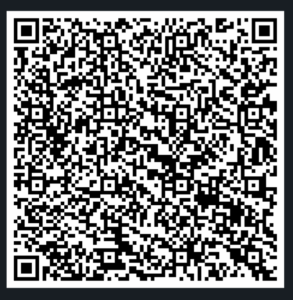
Scan the QR Code with the Lobstr app to add an XH5 trustline
XH5 is actually an IOU, and it is important to note that the buyback price is always lower than the sale price, so you are almost guaranteed to lose lumens if you do not plan on holding the XH5 until the liquidation of the account. Even then there is no guarantee that you will come close to receiving the number of lumens originally swapped for XH5.
Lobstr
- Download the Lobstr wallet for Android/IOS
- Register and log in to your account
- Create Trustline for XH5 by navigating to Assets, and selecting the Add Asset button at the bottom of the page.
- Search for XH5 by its name or by the domain name Cleanshave.org
- Click Add next to the XH5 listing
Stellarport
- Log into Stellarport
- Go to Balances.
- At the bottom of the page click the +Trustline button at the bottom.
- In the box that pops up, where it says Asset or Issuer, type XH5.
- The search should return only one result. If there is more than one check the issuer account making sure the wallet address ends in RFBF, or click the three dots in the middle of the address to check that it is GA6N7EVPWJL4266JTJN52TRIRPDAKMUJWFZ5Q2RN4Z23KXCKPUTURFBF.
Stellar Laboratory
- Using the Transaction Builder in Stellar Laboratory, use the Change Trust option to create a trustline for XH5.
- At the top of the Transaction Builder paste your Stellar Wallet address into the box that says Source Account.
- Click the button which says, “Fetch next sequence number for account starting…”
- Skip down to Operation Type where you click the drop-down box and choose Change Trust.
- Next to Asset choose Alphanumeric 4. In the Asset Code box enter XH5.
- Under Issuer Account paste GA6N7EVPWJL4266JTJN52TRIRPDAKMUJWFZ5Q2RN4Z23KXCKPUTURFBF
- Scroll to the bottom of the page and click Sign in Transaction Signer.
- (On the next page sign the transaction with the private key for your Stellar Wallet… and I’d need to finish this when I can grab screenshots for the detailed article.)
Read the XH5 Grey Paper to learn more about the Life Token Experiment or get FREE XH5 by joining the XH5 Telegram group!